
Uniqe285 members
Disrock is a Discord security bot. Set your server rules, follow its activity, and keep an encrypted copy of what matters.
Discord sign-in. Settings for each server.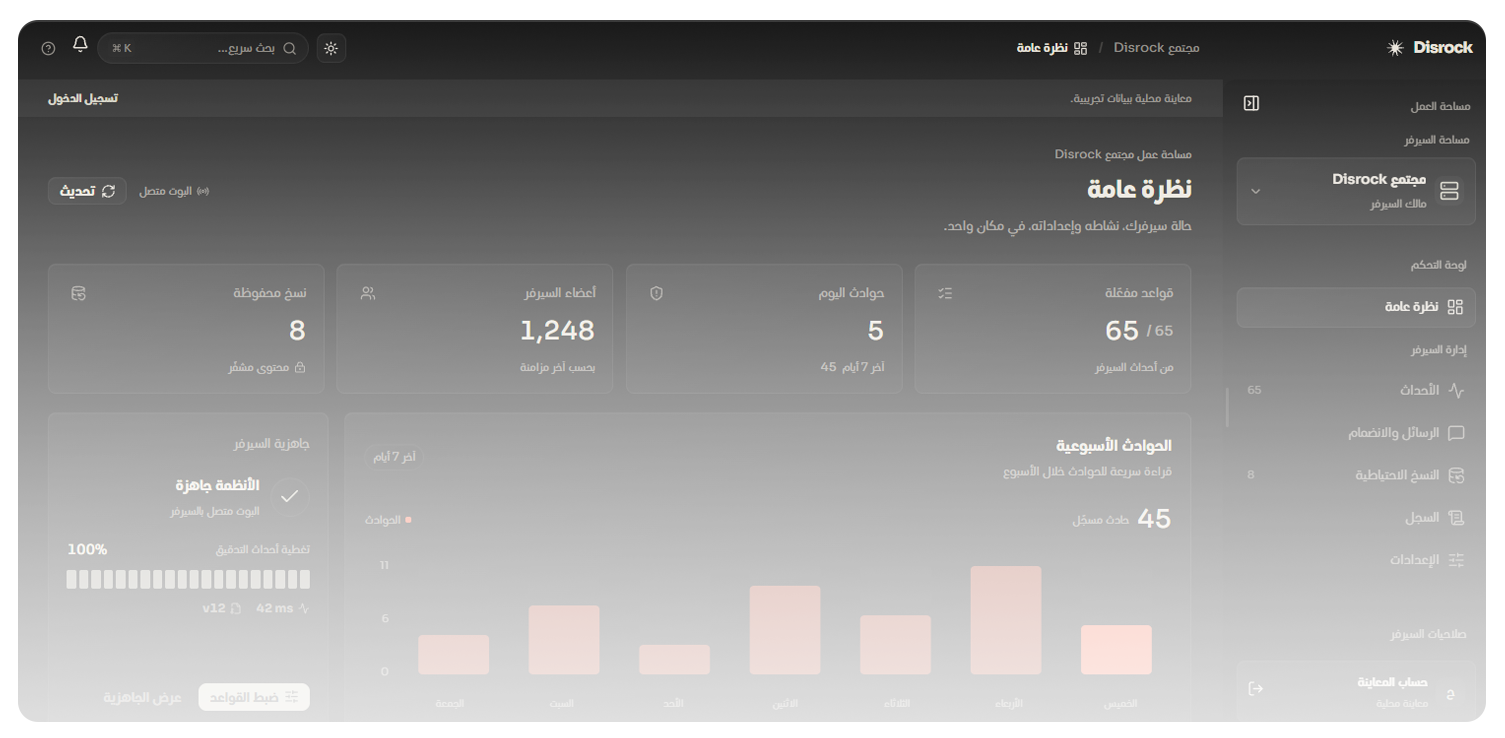


From role changes to join raids, you decide when the bot steps in.
Set limits for role and channel creation, edits, and deletions, and monitor bot additions.
Limit join raids, spam, mass mentions, and links under your server’s rules.
Follow security incidents in a channel you choose and schedule encrypted backups for recovery.
Use your own bot identity, customize embed colors, and assign dashboard managers.
Choose your server, add the bot, and set up protection in three steps.
Sign in with Discord to see your servers.
Choose your server and add Disrock from the dashboard.
Configure protection rules, backups, and alerts.
Server owners can edit settings. With a dedicated bot subscription, owners can assign dashboard managers.
An educational simulation. Expand each step to follow a hypothetical incident.
In this example, channel changes repeat in a short period.
The bot compares activity with the configured limit and time window and checks who performed it.
When rule and permission checks pass, the bot applies the action selected by the server owner.
The owner can review the incident in the logs and decide what to do next.
If a suitable backup exists, preview the recovery plan to see what can be restored.
How to add the bot, set up protection, and manage your server data.
Policies and your rightsSign in with Discord and choose the server you want to protect.